This is the way to add a link list your Blogger beta blog. Sign into the Blogger beta account, and you will see a list of your blogs (See screenshot below. Click to enlarge):

Click on "Layout" and the Layout page will open (see screenshot. Click to enlarge):

Click on "Add a Page Element" and a "Choose a new page element" pop-up will appear (see screenshot below):

If you want a link list, choose that and click "Add to Blog" and a "Configure link list" will appear. Type in the title, leave the "No of links to show in this link list" empty, type in your target site URL and then the description of that target site (what you would like to be displayed. For an example, see the screenshot directly below).
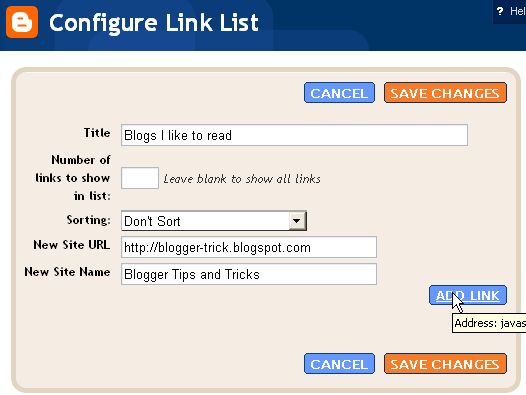
Click "Add Link" and the link will be added and appear at the bottom of the pop-up. In the screenshot below, what you will see displayed at the bottom of the pop-up will be the link "Blogger Tips and Tricks" which had been added by clicking "Add Link".

There is a drop-down menu "Sorting" which when you click on the arrow will allow you to choose "sort alphabetically", "sort reverse alphabetically" or "don't sort". The default is "don't sort" and the links will be displayed in the order they are added. If that is the only link you want, then you can just click "Save changes". On the other hand, if you have further links you would like to add, click "Add Link" and repeat the process, and the new link will be added to the earlier link at the bottom of the pop-up. You can continue to add more links in the same way as described until you are satisfied, then click "Save Changes" and you will be back to the Layout page. You will see a new "Link List" (in the example, instead of Link List, you will see "Blogs I like to read" which was the title of the link list) page element right at the top of the Layout sidebar. If that is the position you want, then you can just leave it as it is and you job is done. However, if you want the link list elsewhere, you can place the cursor over the link list Page Element and the cursor will change to a cross:
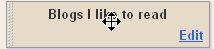
and you can drag and drop it into whatever position you want. You can view the outcome of that action by clicking on "Preview" at the top of the Layout. If you are satisfied with the position, click "Save" at the top of the Layout:

If you want another link list, you can click on "Add a Page Element" and start the process all over again, with a new title, like for example "Blogger Resources" which may contain a list of blogs which are useful to bloggers. When you are happy with what has been already added, then click "Save" at the top right-hand corner of the Layout and your job is done.
BTW, I am like any other bloggers who like their blog to be read. It is my hope that if you find this blog or any of my other blogs helpful, you will put a link to my site in your blog. Put it among your other links, or put them in a separate section with the title "Blogger Resources" and add some or all the following links (URL) to your sidebar:
http://dummies-guide-to-google-blogger.blogspot.com
http://blogger-tricks.blogspot.com (Blogger Tips and Tricks)
http://bloggerfordummies.blogspot.com
http://firefox-alert.blogspot.com
http://generating-revenue-from-your-blog.blogspot.com
Who knows, by doing that, you may help your visitors find useful material and the help they need.
Note that the links added this way opens in the same window. If you want the links to open in a new window, see below:
Using HTML/Javascript for your Link List
BTW, another way to add a list of links to your sidebar is to use the HTML/Javascript selection instead, then type in the HTML for hyperlinks to get the link list you want. In this way, you have a better control over how you want your link list to appear, and to behave. I have appended an example which will give links that open in new windows. It is given as an example, and also hoping you copy-paste it to the HTML/Javascript element in the sidebar section: <h2 class="sidebar-title">Blogger Resources</h2>
<ul>
<li><a href="http://blogger-tricks.blogspot.com/" target="_blank">Blogger Tips and Tricks</a></li>
<li><a href="http://bloggerfordummies.blogspot.com" target="_blank">Blogger for Dummies</a></li>
<li><a href="http://adsense-alert.blogspot.com" target="_blank">AdSense Alert</a></li>
<li><a href="http://firefox-alert.blogspot.com/" target="_blank">FireFox Alert</a></li>
<li><a href="http://testing-blogger-beta.blogspot.com" target="_blank">Testing Blogger Beta</a></li>
<li><a href="http://dummies-gudie-to-google-blogger.blogspot.com" target="_blank">Dummies Guide to Google Blogger</a></li>
</ul>
<h2 class="sidebar-title">Environmental Blogs</h2>
<ul>
<li><a href="http://enviromansays.blogspot.com/" target="_blank">Enviroman Says</a></li>
<li><a href="http://envirocard.blogspot.com" target="_blank">Environmentally Friendly Greeting Cards</a></li>
<li><a href="http://foodasmedicine.blogspot.com" target="_blank">Food as Medicine</a>
<li><a href="http://aerator.blogspot.com" target="_blank">Zero Energy Waterwheel Aerator</a></li>
<li><a href="http://owaste.blogspot.com/" target="_blank">Zero Waste</a></li>
<li><a href="http://morganicfarming.blogspot.com" target="_blank">Backyard Organic Farming</a></li>
<li><a href="http://freecycleinternational.blogspot.com" target="_blank">Freecycle International</a></li>
</ul>
<ul>
<li><a href="http://blogger-tricks.blogspot.com/" target="_blank">Blogger Tips and Tricks</a></li>
<li><a href="http://bloggerfordummies.blogspot.com" target="_blank">Blogger for Dummies</a></li>
<li><a href="http://adsense-alert.blogspot.com" target="_blank">AdSense Alert</a></li>
<li><a href="http://firefox-alert.blogspot.com/" target="_blank">FireFox Alert</a></li>
<li><a href="http://testing-blogger-beta.blogspot.com" target="_blank">Testing Blogger Beta</a></li>
<li><a href="http://dummies-gudie-to-google-blogger.blogspot.com" target="_blank">Dummies Guide to Google Blogger</a></li>
</ul>
<h2 class="sidebar-title">Environmental Blogs</h2>
<ul>
<li><a href="http://enviromansays.blogspot.com/" target="_blank">Enviroman Says</a></li>
<li><a href="http://envirocard.blogspot.com" target="_blank">Environmentally Friendly Greeting Cards</a></li>
<li><a href="http://foodasmedicine.blogspot.com" target="_blank">Food as Medicine</a>
<li><a href="http://aerator.blogspot.com" target="_blank">Zero Energy Waterwheel Aerator</a></li>
<li><a href="http://owaste.blogspot.com/" target="_blank">Zero Waste</a></li>
<li><a href="http://morganicfarming.blogspot.com" target="_blank">Backyard Organic Farming</a></li>
<li><a href="http://freecycleinternational.blogspot.com" target="_blank">Freecycle International</a></li>
</ul>
Or you can just do a test, copy-paste it to the HTML/Javascript element, save, and see what it looks like and how it behave. If you don't want part of the lists, or you don't want it in your sidebar, just delete part of or the whole element.
UPDATE: Links in the Link List open in the same window by default. There have been numerous request to make links in the Link List open in new windows, look at this post: Blogger Beta: Making links in Link list open in new windows (close new window/tab to get back to this page).


