Bloggers using Google Blogger have been clamoring for Google Blogger to introduce Categories (a very useful feature) which had been available in other blogging platforms but not the old classic Blogger. That is, until they introduced Blogger Beta (now referred to as New Blogger or just plain Blogger). The only difference is they like to be different and they call it Labels which is the same as the more widely recognised Categories. It enable you to tag (label or categorise) you posts with the same label (category or tag) and make them easy to find.
How to use Labels (Categories or Tags)
The very first thing you have to do is whenever you make posts (or edit old posts), type the relevant labels (categories or tags) in the field provided at the bottom of the post editor (see screenshot below, the part highlighted with a red circle):
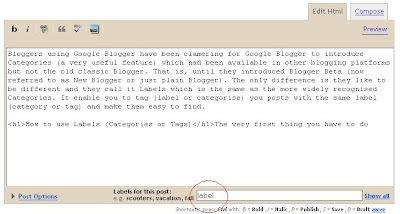
You can put as many labels as you like, but they should be separated by commas. Someone asked for help, but I am not exactly what she wants. I think she want her visitor to click a link to all her posts about her favorite books. If that is what she want, all she need to do is to type the label "My favorite books" (minus the quotation marks) into the field for labels (highlighted with a red circle in the screenshot above). She can still add more labels which is relevant to that particlar post if she want by adding a comma, then typing in the other label or labels.
Label List in the sidebar (or elsewhere)
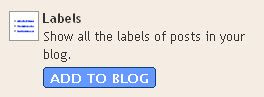
Just adding label or labels to a post will help but will not be very useful because a visitor will see the label or labels only at the bottom of a particular post. It would be much more useful if you add a Label List to the sidebar (or anywhere you like) so that the list of labels you use will appear in every page, including the main (home or index) page, the individual post pages (permalinks) and the archive pages. To do this, if you are in the post editor page, click the TEMPLATE
tab and you then should see the LAYOUT. The proceedure may be slightly different depending on which page of Blogger you are in. It could be you will need to click on PAGE ELEMENTS instead. Click on the ADD A PAGE ELEMENT in the LAYOUT page, and you will get a "pop-up". Select LABELS (see screenshot at the beginning of this section). If you do, you will the see CONFIGURE LABELS where you can chose to display the labels either alphabetically or by frequency, plus you will see Labels already added to the title of that Page Element. My habit is to add (Categories or Tags) to that because categories and tags are better known. After you have made a choice, click SAVE CHANGES and you will see the new Page Element added to the top of section. If you are happy with that, your job is done. If you want it elsewhere, hover your mouse over the new Page Element and the cursor will change to a cross:

. You can now drag it to wherever you want it.
Like in the example above, you want someone to see all your posts you made about your favorite books, just add the label "My Favorite Books" (minus the quotation marks) and any other labels you want and you will see the link "My Favorte Books" in the Label List in the sidebar. Anyone clicking on that link will see all your posts you made on your favorite books.


